How to follow a long adventure route GPX
A long route usually comes as one GPX with many sections and alternatives (Main / harder). Open the whole file in OffTrail, then show only the sections you plan to ride. Only the visible sections enter navigation.
Get the GPX from the route's own site
Start at the official route index: Trans Euro Trail (TET), Adventure Country Tracks (ACT) or Backcountry Discovery Routes (BDR). Choose your country or route and follow its download steps.
Download a fresh copy just before you go, read the route notes and support the project when it asks for a donation. TET provides a GPX per country after you accept its terms. BDR provides free GPS tracks on each route page. ACT may ask you to register. If the download is a ZIP, unzip it first and open the GPX inside.
New to the format? What is a GPX file? explains Tracks, routes and waypoints.
Import once, choose your sections
Save the GPX on your phone and open it with OffTrail. Follow the import steps for iPhone or Android.
The imported file appears as one Track. Expand it to see the sections underneath. Each track in the GPX becomes a sub-Track; the whole file counts as one Track in your library.
Hide the days you are not riding and the alternatives you do not want. For a Main / harder pair, show one and hide the other. You can change each section's colour to make the choice easier to see.
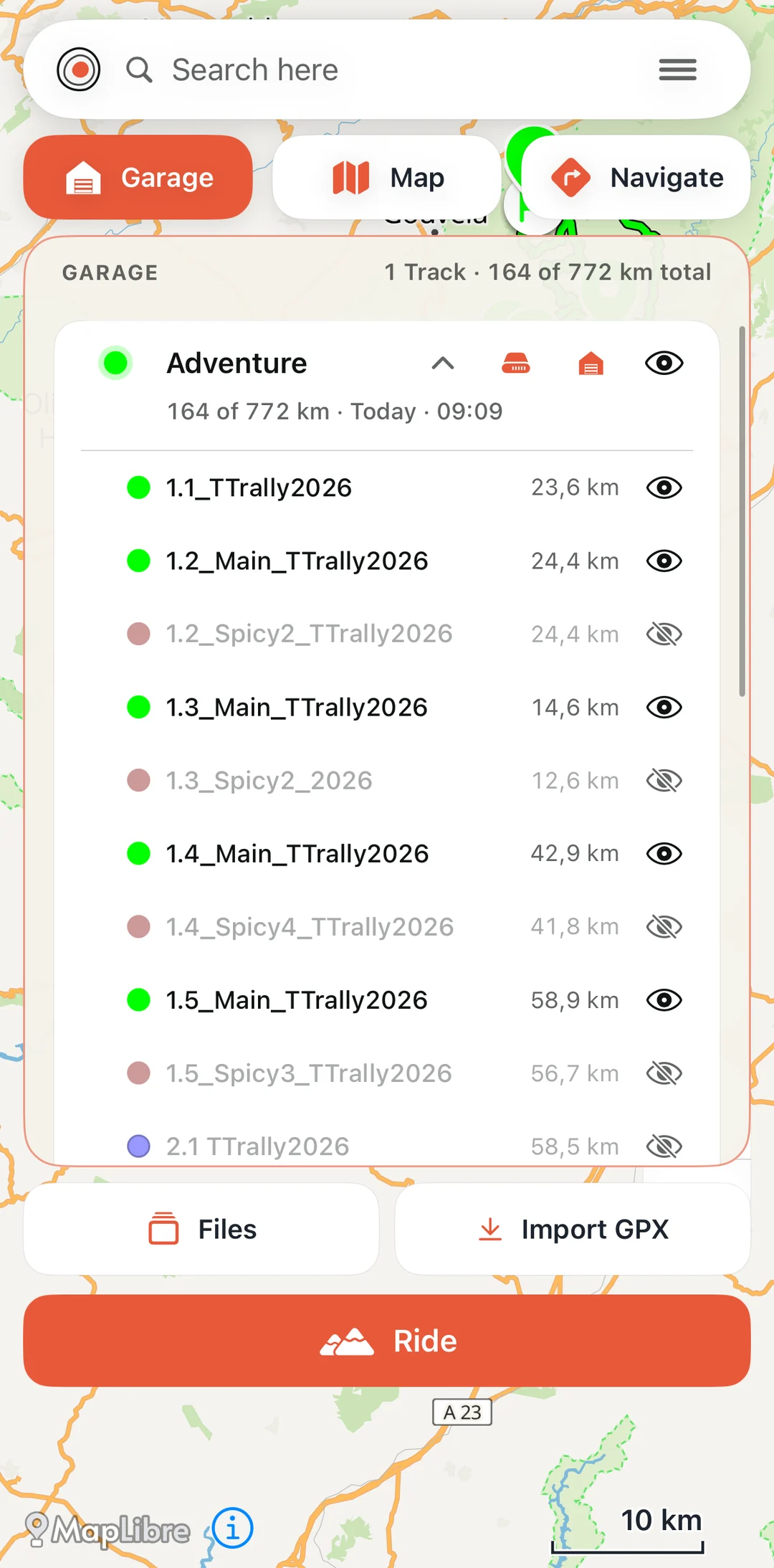
Check the map before tapping Ride. Only the visible sub-Tracks are used for navigation on the phone, CarPlay and Android Auto. Waypoints from the file appear as places on the map, including fuel stops and other named points.
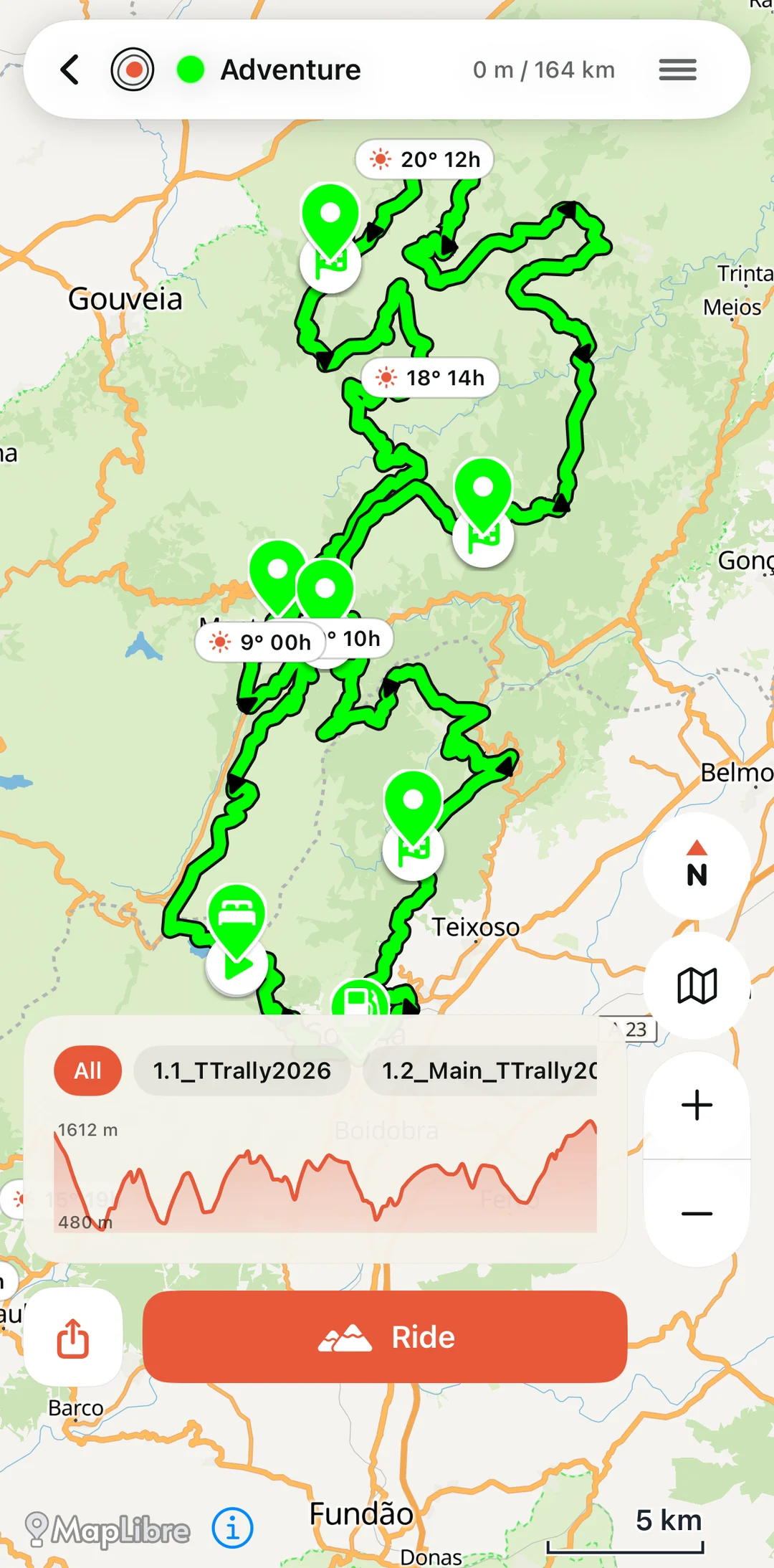
Download the offline map
The GPX carries the line, not the map. Download the offline map for every country you will cross, including the area around your route. Open the Track with mobile data off before you leave and check that both the line and the map appear.
Use the offline riding checklist to prepare.
Get to the start, then Ride
Use Track to if you need a road route to the start. It needs a connection to calculate that route, so do it while you have signal. At the route, tap Ride to follow your selected sections.
OffTrail warns you if you leave the Track or ride the wrong way. When one section ends where the next visible one starts, you ride straight on. Hidden alternatives are never used for navigation.
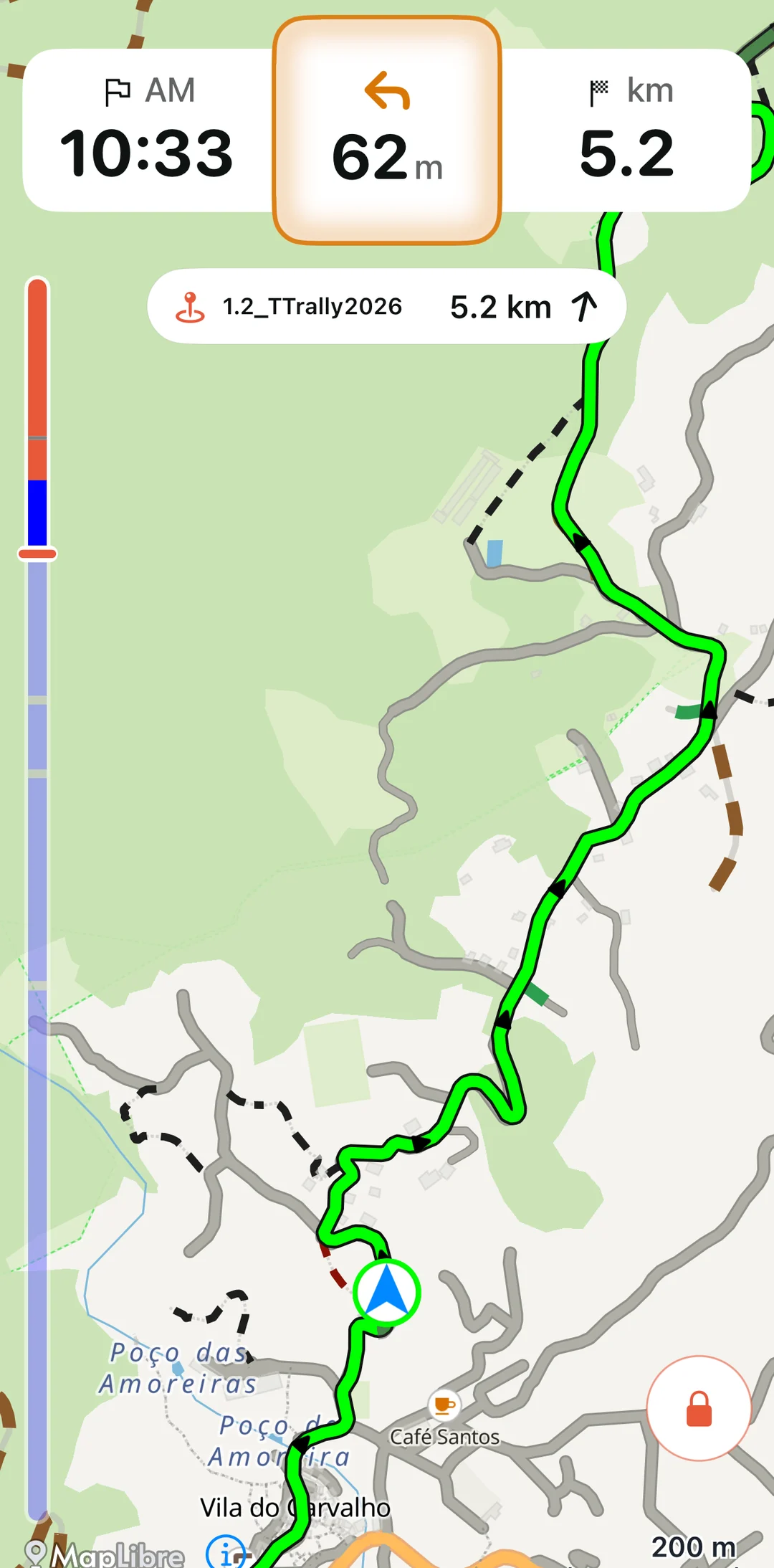
For a screen on the bike or in the car, see supported devices.
Frequently asked questions
Can I ride just one section?
Yes. Expand the Track and hide every section except the one you want to ride. Only visible sections enter navigation.
How do I choose an alternative?
Show either the Main section or its harder alternative, and hide the other. Names such as ALT or Spicy come from the file; check the route notes for what they mean.
Can I share the GPX with a friend?
Each rider should download their own copy from the route's official site. That gives everyone the current file and respects the route's distribution terms.
Can I follow the route without a connection?
Yes. Import the GPX and download the offline map for each country you will cross before leaving. GPS and Track following work without signal. Track to needs a connection to calculate the road route to the start.