User Guide
OffTrail is an offline-first GPX navigator for adventure riders. Load a track and ride — your tracks, recordings and maps stay on your phone. No account, no cloud, no tracking.
Quick start
Three taps to your first ride.
- 1 · Import a track. On Home, tap Import GPX and pick a
.gpxfile. It appears in your loaded tracks with its own colour. - 2 · Tap Ride. The ride screen opens with your track on the map and a live HUD on top.
- 3 · Ride. OffTrail keeps you on the line, warns if you drift off-track, and records the whole ride automatically.
No track yet? Tap Track to, then long-press a destination on the map — OffTrail builds an off-road route to it.
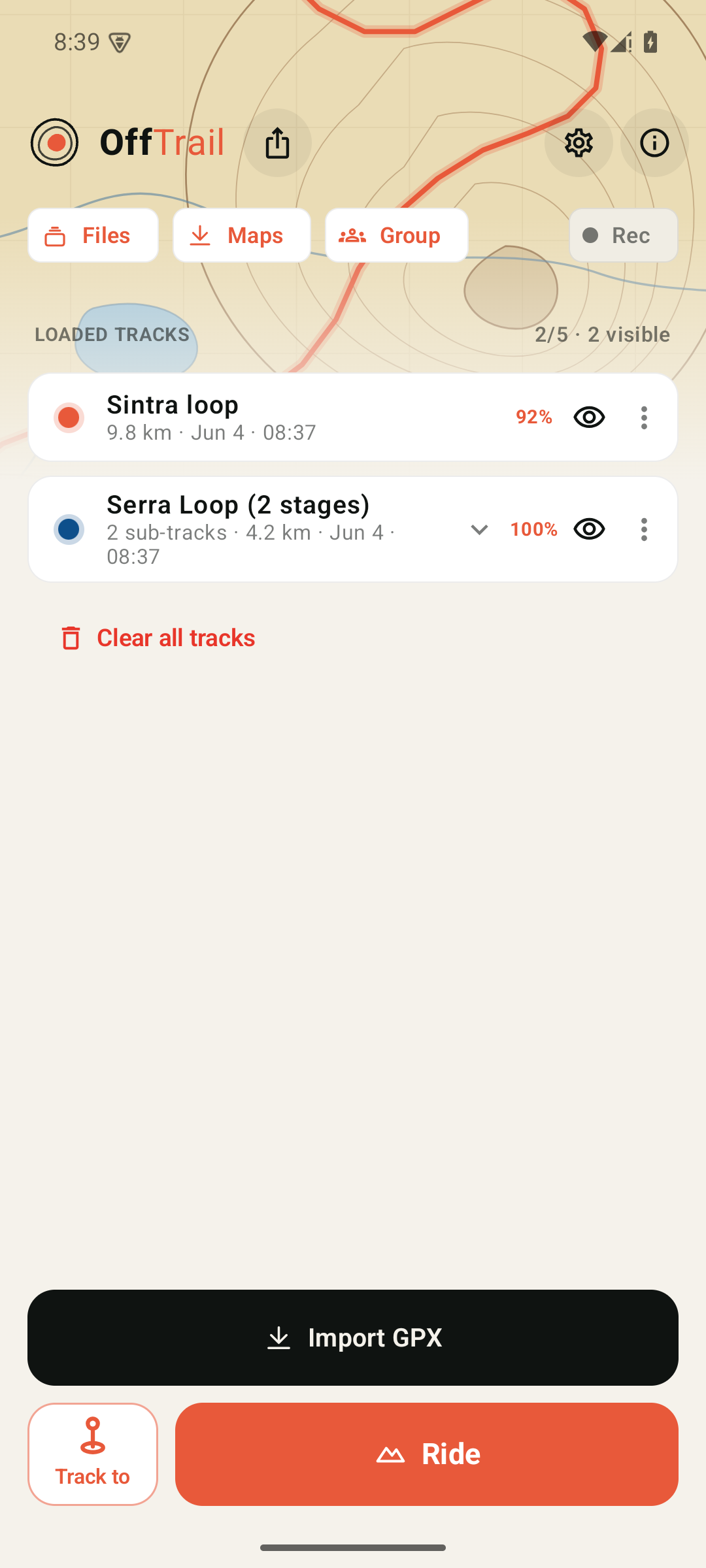
The Home screen
Your tracks and the way into everything else.
- Loaded tracks — up to 5 at once, each with a coloured dot. Tap a card to preview it on the map.
- Eye toggles a track's visibility. Track options — rename, recolour, reverse, share and delete — open from the ⋮ menu, or by long-pressing the track.
- Top chips — Files, Maps, Group, and the Rec switch (manual recording).
- Bottom — Import GPX, Track to, and the big Ride button.
Tracks & multi-track files
One GPX, several tracks — kept apart.
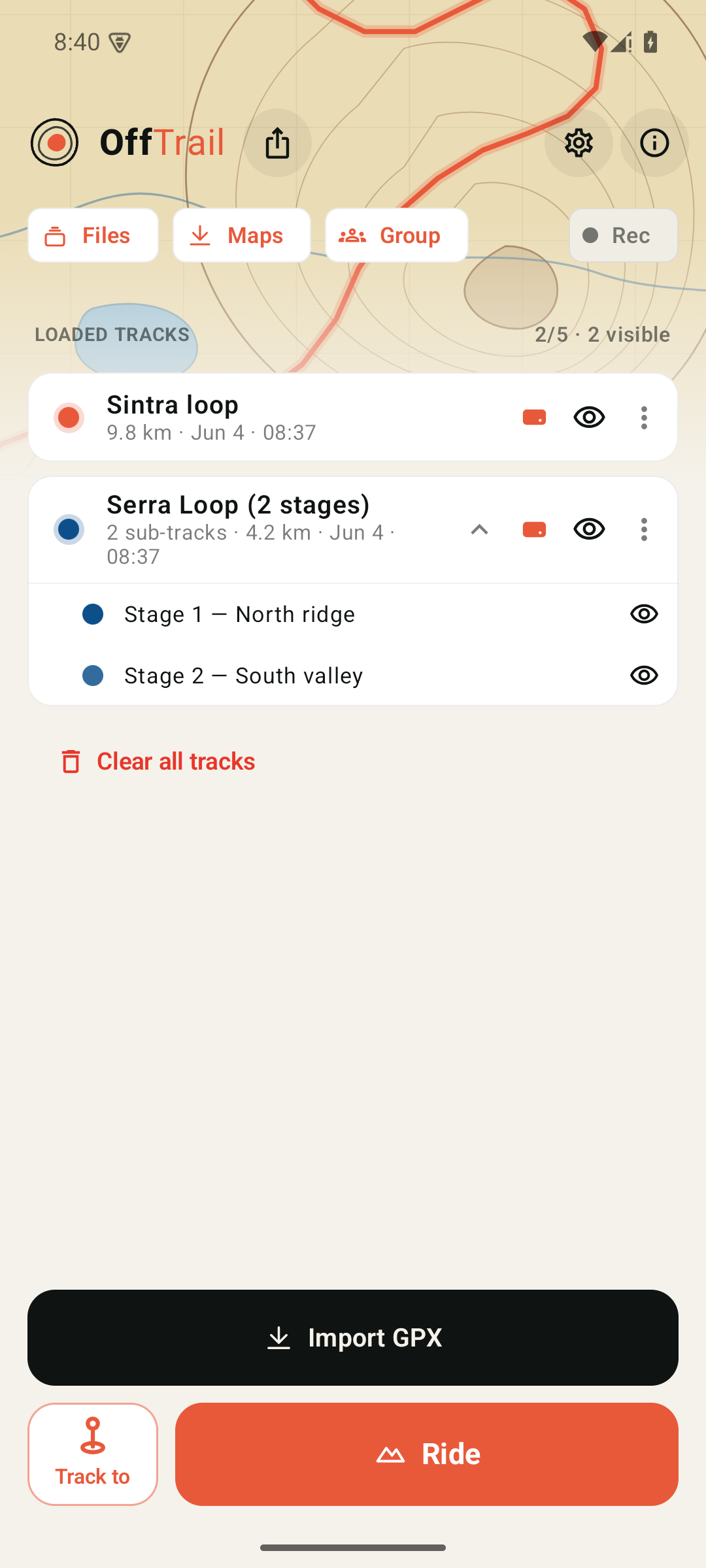
A GPX file that contains several tracks stays split into sub-tracks under a single entry, instead of being flattened into one tangled line.
- Tap the chevron to expand a group and see each sub-track.
- Each sub-track gets its own shade and an eye to show or hide it on its own.
- Tap a sub-track's dot to recolour just that one.
- A grouped file counts as a single one of your 5 track slots.
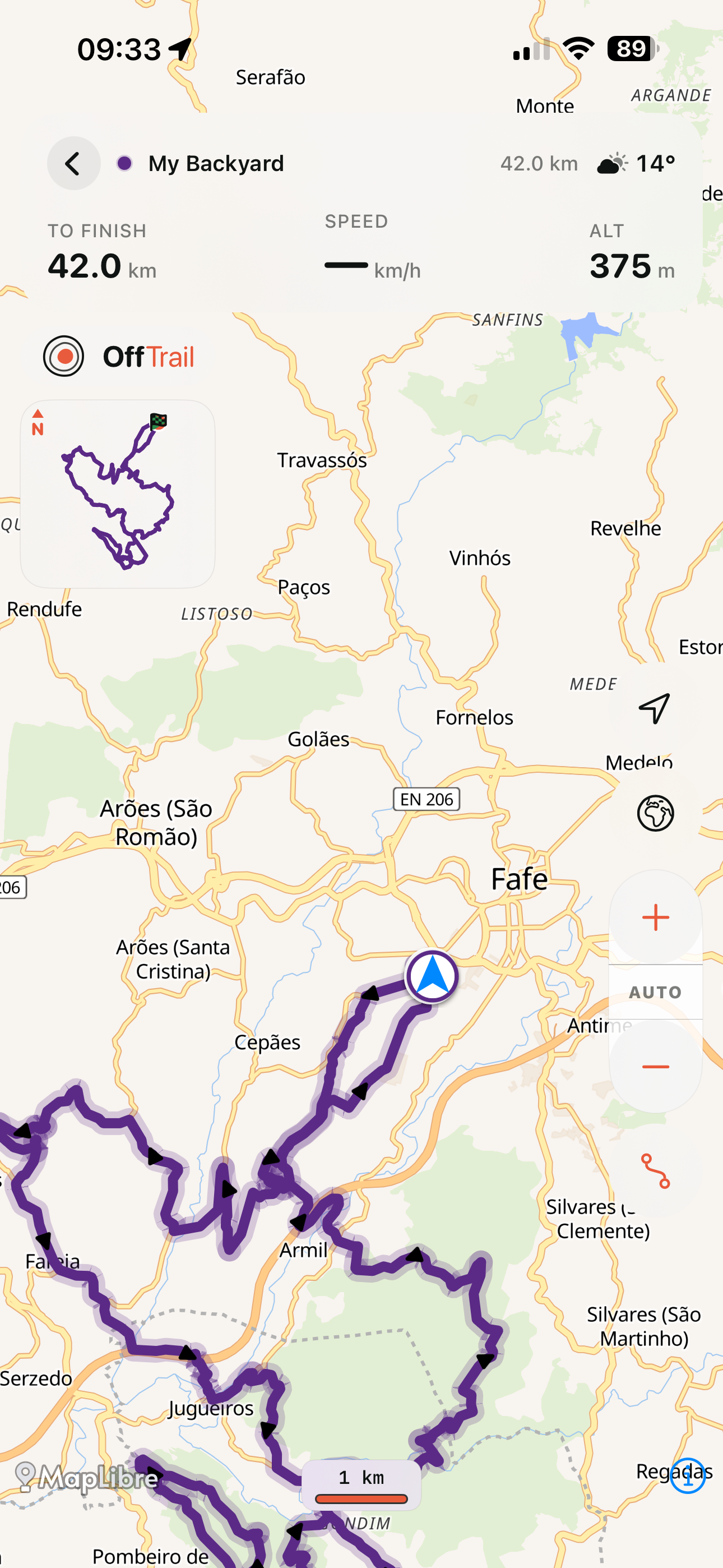
Riding — the HUD
Eyes-up info while you ride.
Tap Ride to follow your track. The map sits behind a heads-up display:
- To finish · Speed · Altitude across the top, with the engaged track's name and colour.
- Off-track banner with a bearing back to the line if you drift, plus an optional wrong-way alert.
- Right rail — locate (north/course-up), basemap (off-road / satellite), zoom + / AUTO / –, and the mini-map toggle.
- Recording runs automatically in the background — every ride is saved.
The map area shows your basemap (off-road or satellite) once map tiles have loaded online or from your offline cache.
Recording a track (Rec)
Lay down a clean, named track as you ride.
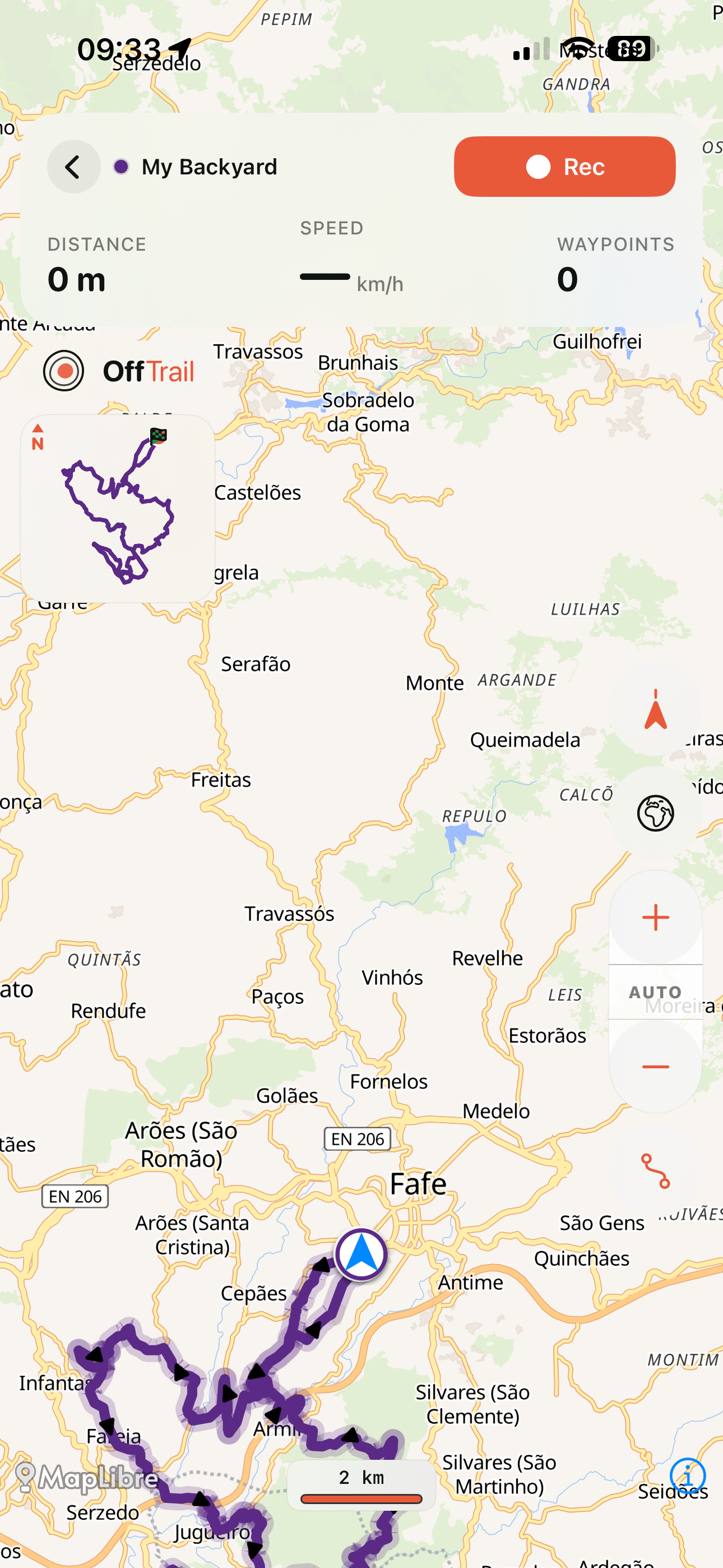
Beyond the automatic ride History, Rec lets you capture a track deliberately — start and stop it yourself.
- Flip the Rec switch on the Home header, then tap Ride. The HUD gains a record card with ● Rec / Pause / Stop.
- The breadcrumb draws live on the map; pause to break the line, resume to continue.
- Drop waypoints as you go (with symbols — start, finish, danger, fuel…).
- Stop to name and save it; it lands in your Rec list under Files, ready to share or ride again.
Track to
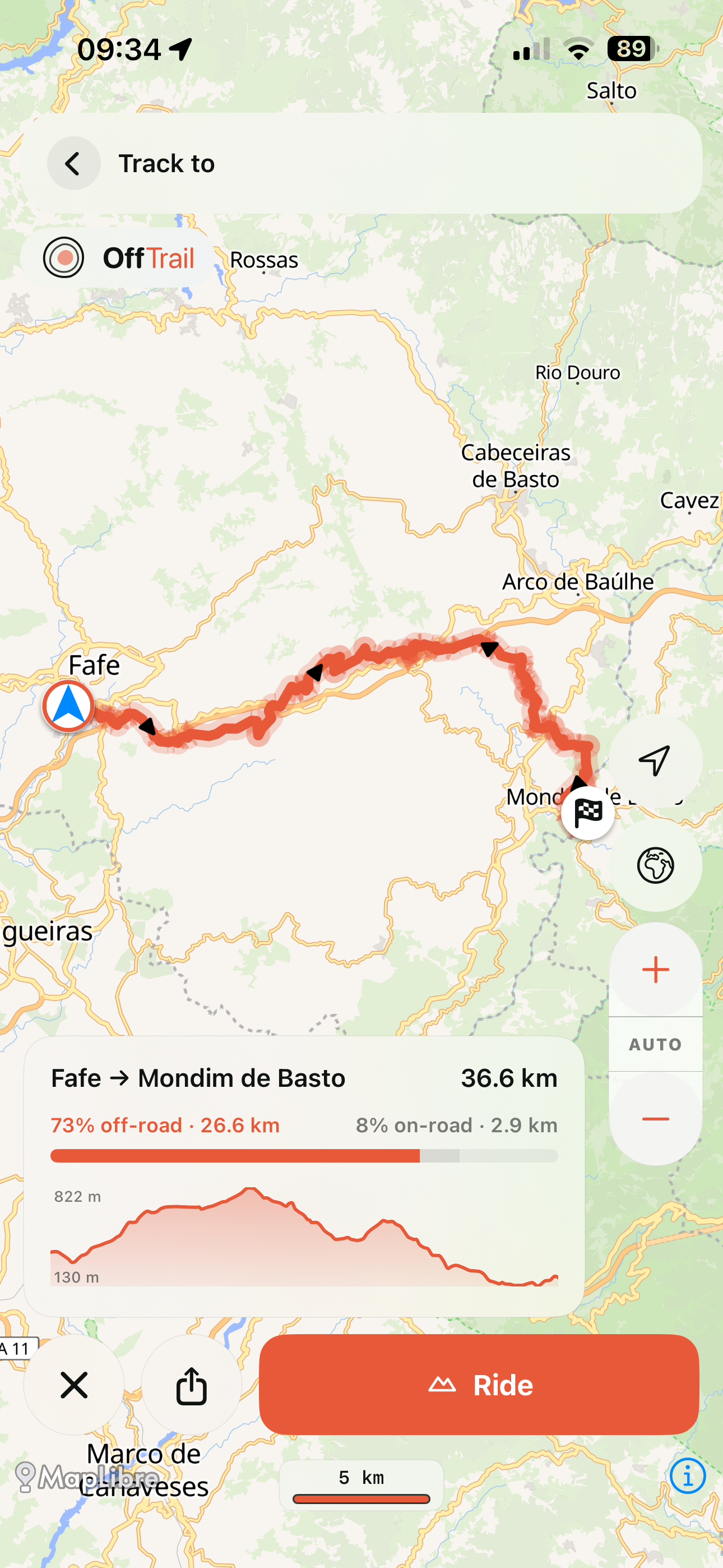
Build an off-road route to a point.
Tap Track to, then long-press anywhere on the map. OffTrail plots a route there favouring trails and dirt over tarmac.
- Before you commit, you see the whole line with its off-road / on-road split and elevation profile.
- Tap Ride to follow it like any other track — or reverse it first.
- Every route you build is saved under Files, so you can come back to it.
- Needs a connection to route; offline it falls back to a straight line.
Track preview
Check a track before you ride it.
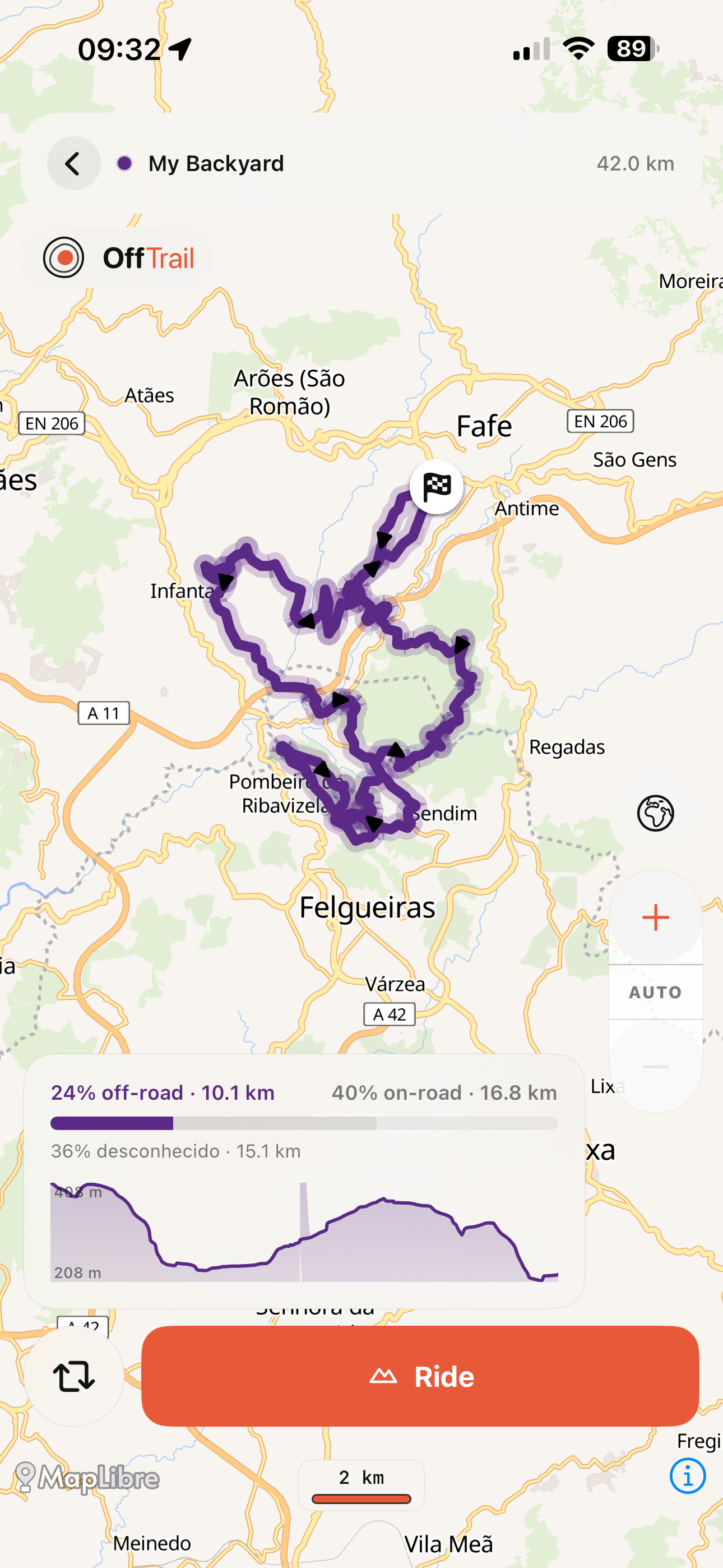
Tap any track card on Home to open a read-only preview on the map:
- The whole track, fit to screen, with distance and the off-road / on-road split.
- An elevation profile for the climbs and drops.
- Reverse the direction, or tap Ride to set off.
Recordings & History
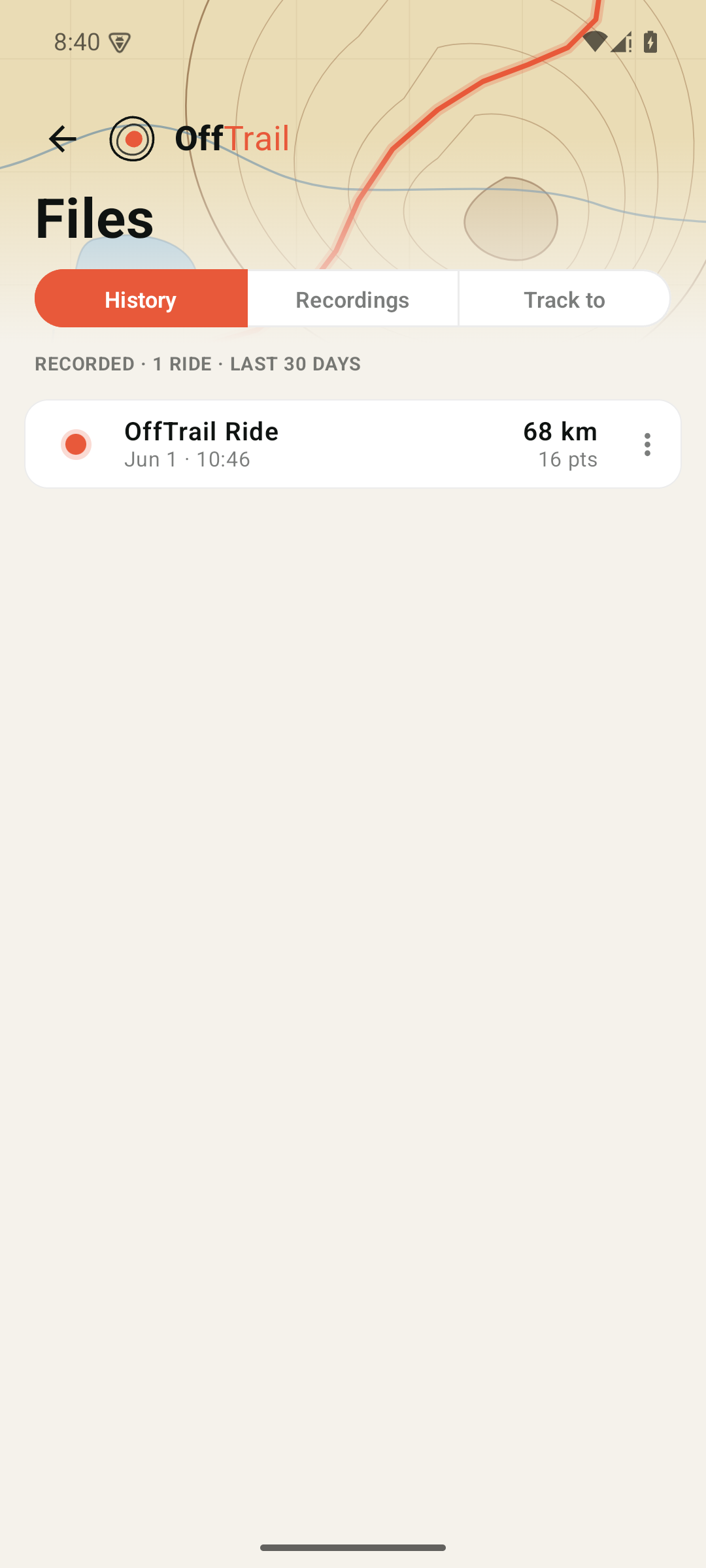
Every ride, kept on your phone.
The Files screen holds two lists:
- History — the automatic recording of every ride, saved as GPX.
- Rec — tracks you captured deliberately with the Rec switch (Start / Pause / Stop), with waypoints.
Rename, recolour, share the GPX, preview, or load one back onto Home. All stored locally.
Offline maps
Download a region, ride with no signal.
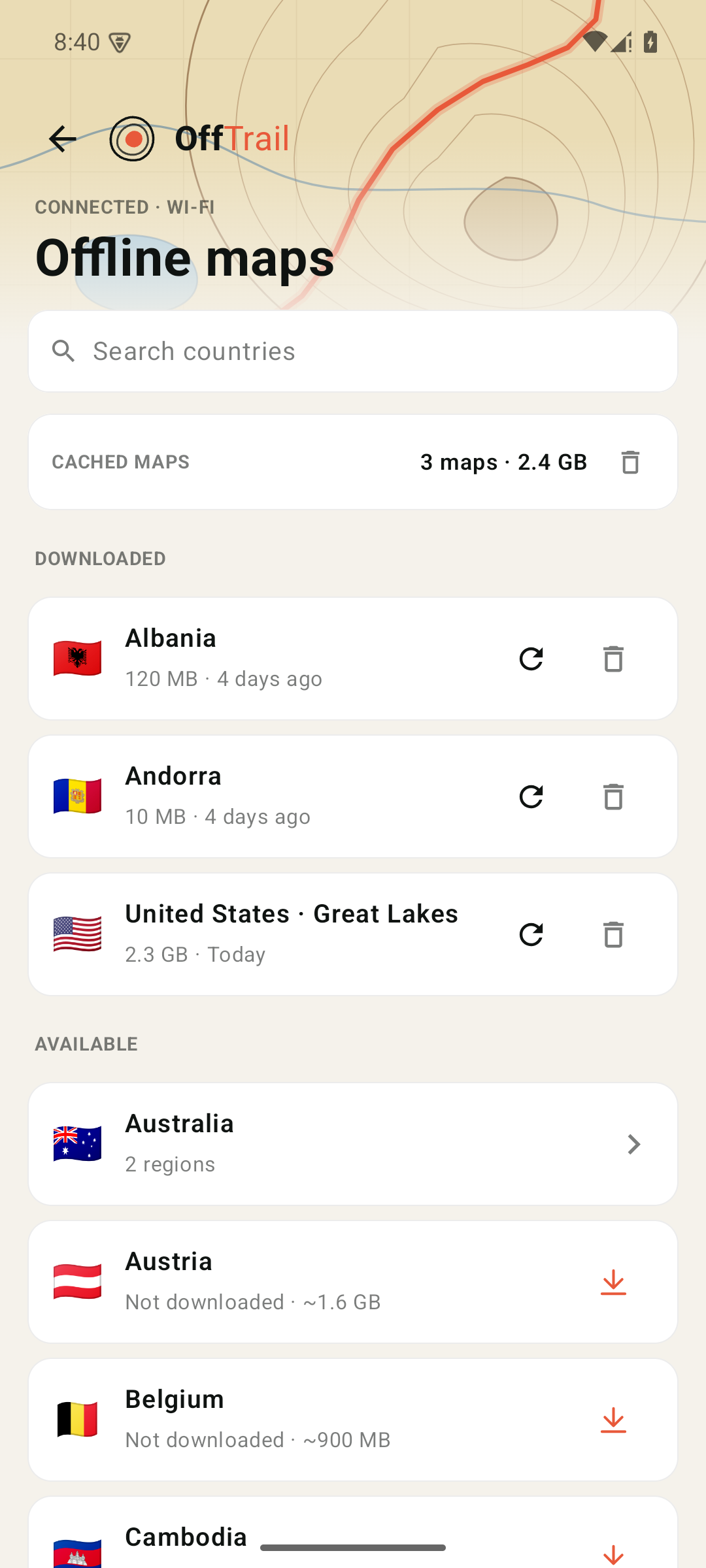
Maps auto-cache as you browse, and you can download whole countries / regions to ride fully offline.
- Search a country and tap to download; large regions split into parts.
- See what's cached and how much space it uses; re-download to refresh or delete to free space.
- Downloads on cellular are off by default — enable them in Settings.
Group ride
Ride together, see each other live.
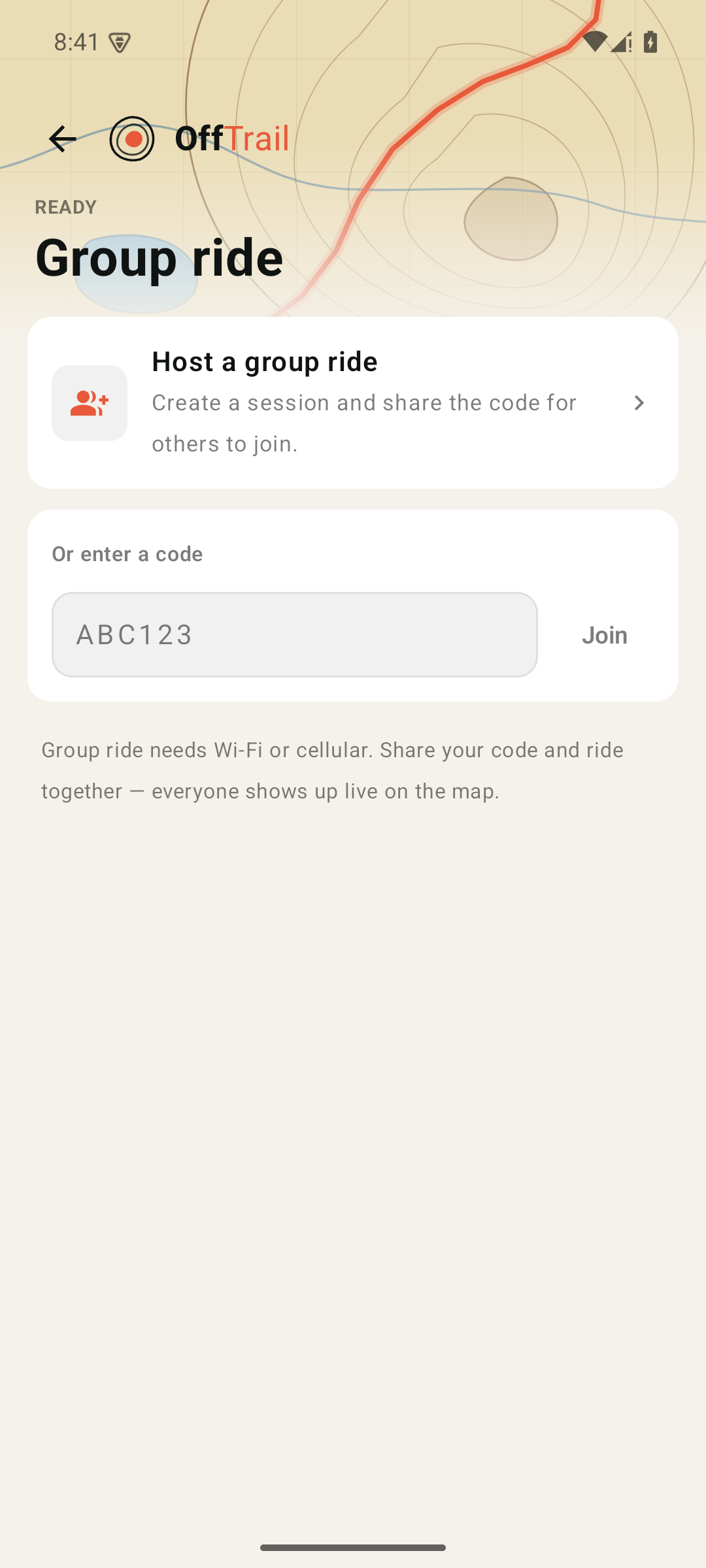
Start a session and share the 6-digit code; friends type it in to join. Everyone shows up live on each other's maps.
- Host a ride, or enter a code to join — both right on the Group screen.
- Needs Wi-Fi or cellular. Sessions are ephemeral — nothing is stored, and they end on their own after the set time.
- Set your display name in Settings so friends recognise you.
Settings
A few knobs; sensible defaults.
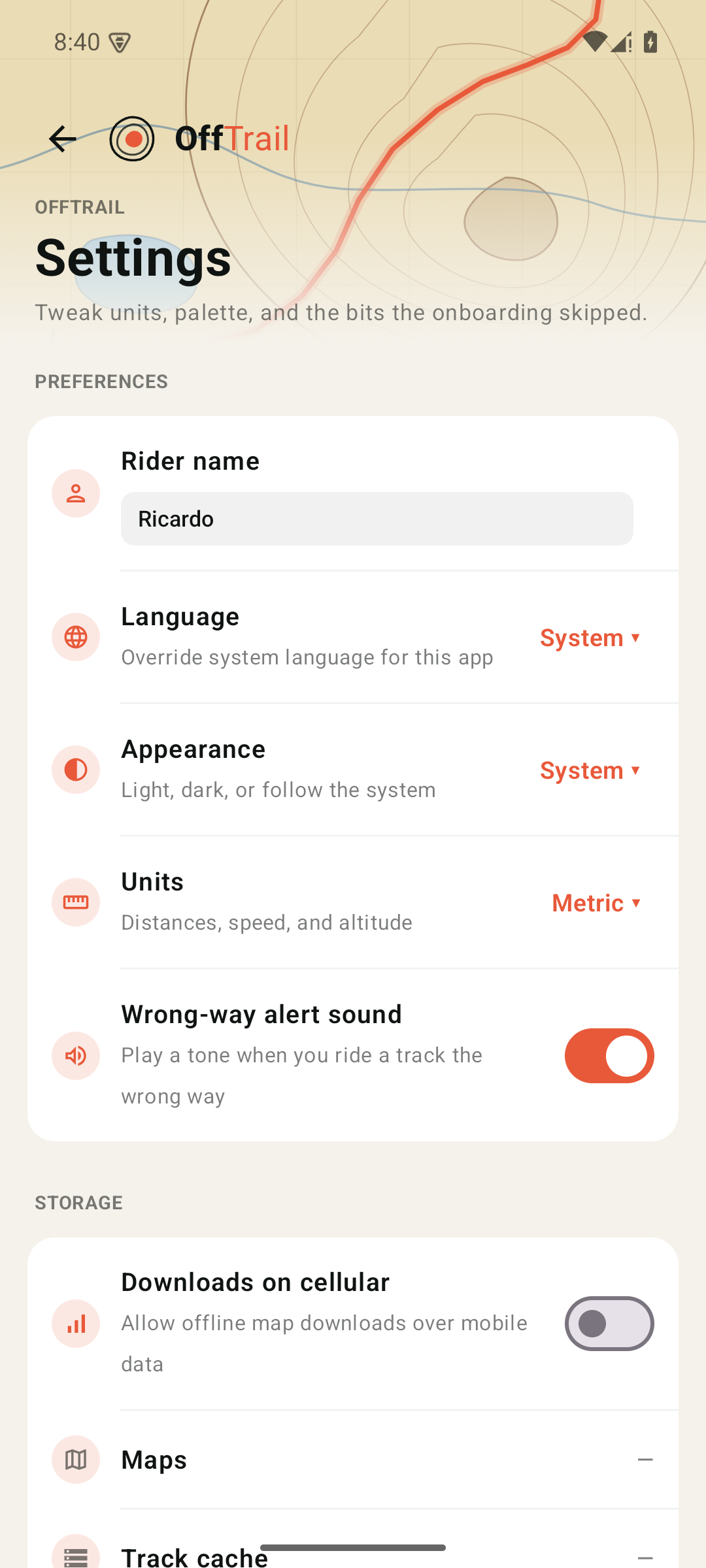
- Units (metric / imperial), appearance (light / dark / system), and language (English / Português / Español).
- Rider name for group ride.
- Downloads on cellular and the wrong-way alert sound.
- Storage — how much space tracks, recordings and maps use.
About & supporting OffTrail
Free, and built by one rider.
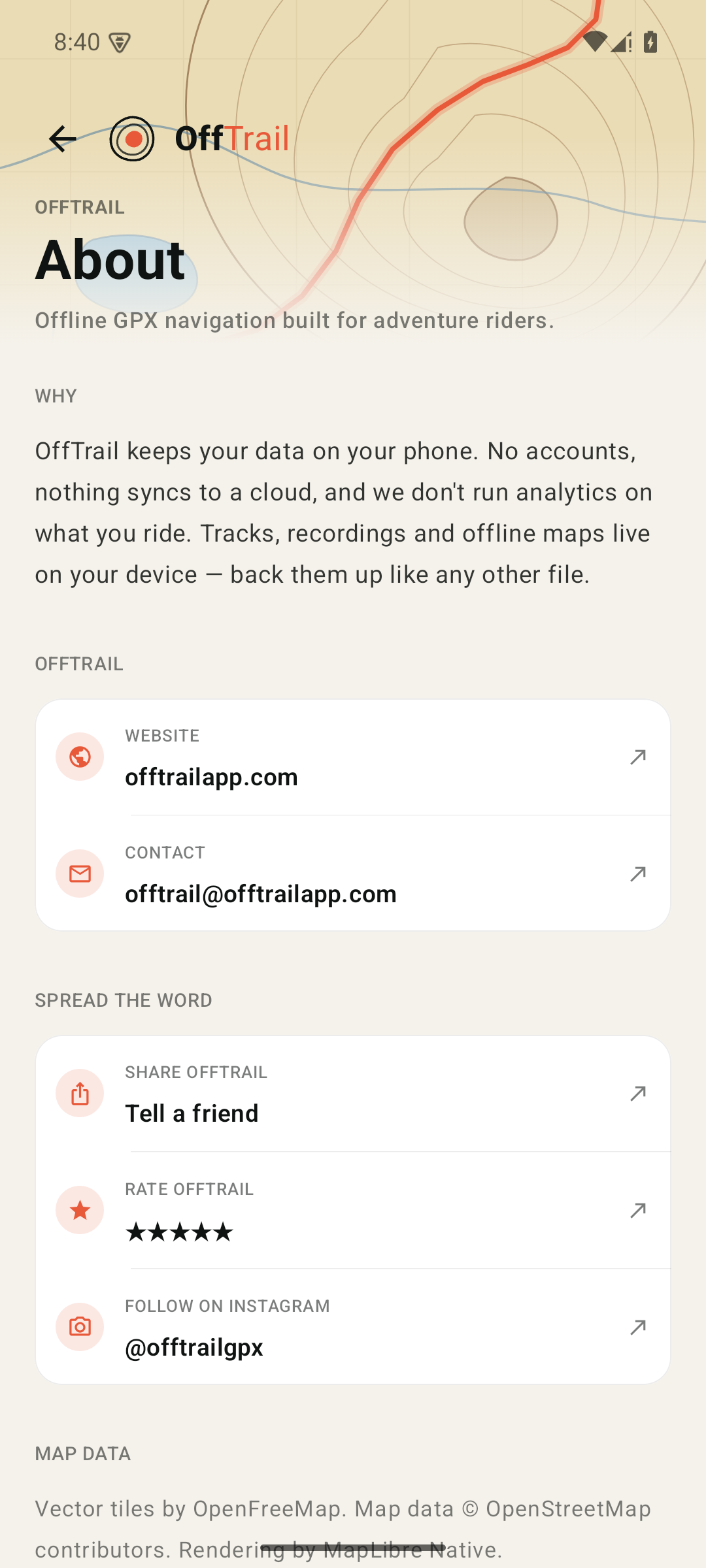
OffTrail is free with nothing gated. If it's earned a place on your bars, there's an optional tip jar in About (and on the Home header). No subscription, no unlock.
About also has the website, contact, a share button and a link to rate the app.
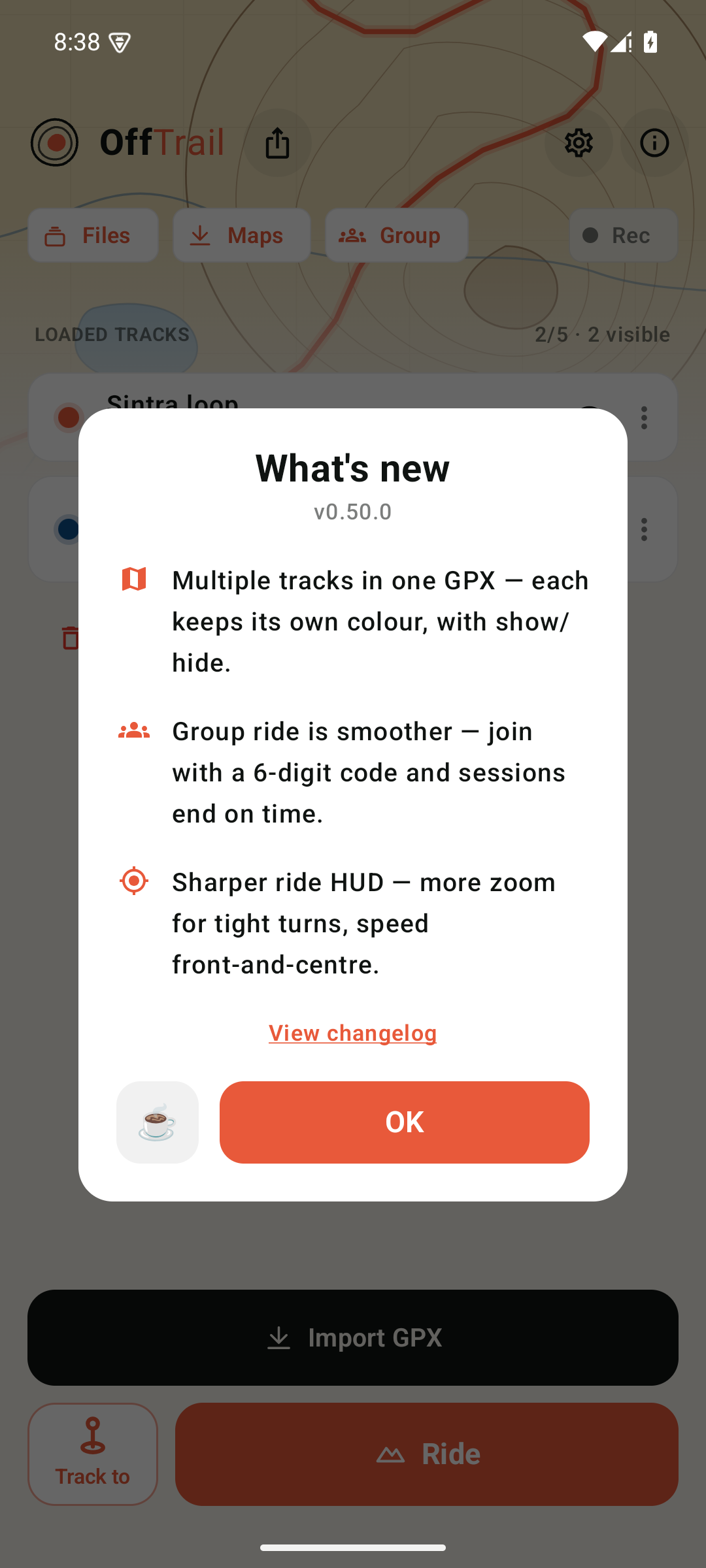
What's new
After an update, a short summary shows once.
When you open a new version, OffTrail shows a brief "What's new" with the headline changes and a link to the full changelog. Tap OK to dismiss — it won't show again until the next update.
See every release at offtrailapp.com/changelog.